TL;DR: Negative keywords are essential for cutting wasted Amazon ad spend by preventing your ads from showing for irrelevant searches. This guide walks you through how to find, apply, and maintain negative keywords using the right match types to boost ROI in your Amazon PPC campaigns.
Key Takeaways
- Negative keywords prevent your Amazon ads from appearing for irrelevant or low-converting search terms, directly reducing wasted ad spend.
- Amazon supports three negative keyword match types—broad, phrase, and exact—each offering different levels of control over ad targeting.
- Regularly analyzing search term reports is critical to identifying underperforming queries and building effective negative keyword lists.
- Strategic use of negative keywords improves campaign relevance, increases ACoS, and enhances overall profitability in Amazon advertising.
- Automated tools like SellerSprite can streamline the process of discovering and applying negative keywords at scale.
Table of Contents
Note on marketplaces: This guide is specifically optimized for the US market.
What Are Negative Keywords?
Negative keywords are search terms that you explicitly tell Amazon not to trigger your ads for. While regular (positive) keywords help your product appear when shoppers search for relevant phrases, negative keywords act as filters to block unwanted impressions and clicks.
For example, if you sell premium leather wallets, you might want to avoid showing your ad when someone searches for "cheap fabric wallet" or "free wallet download." These searches indicate low purchase intent or mismatched product expectations. By adding "cheap," "fabric," and "download" as negative keywords, you prevent your ad from appearing in those contexts—saving money and improving campaign performance.
Negative keywords are a core component of any advanced Amazon PPC optimization strategy. They allow sellers to refine targeting precision, reduce irrelevant traffic, and focus ad spend on high-intent buyers.
Why Use Negative Keywords on Amazon?
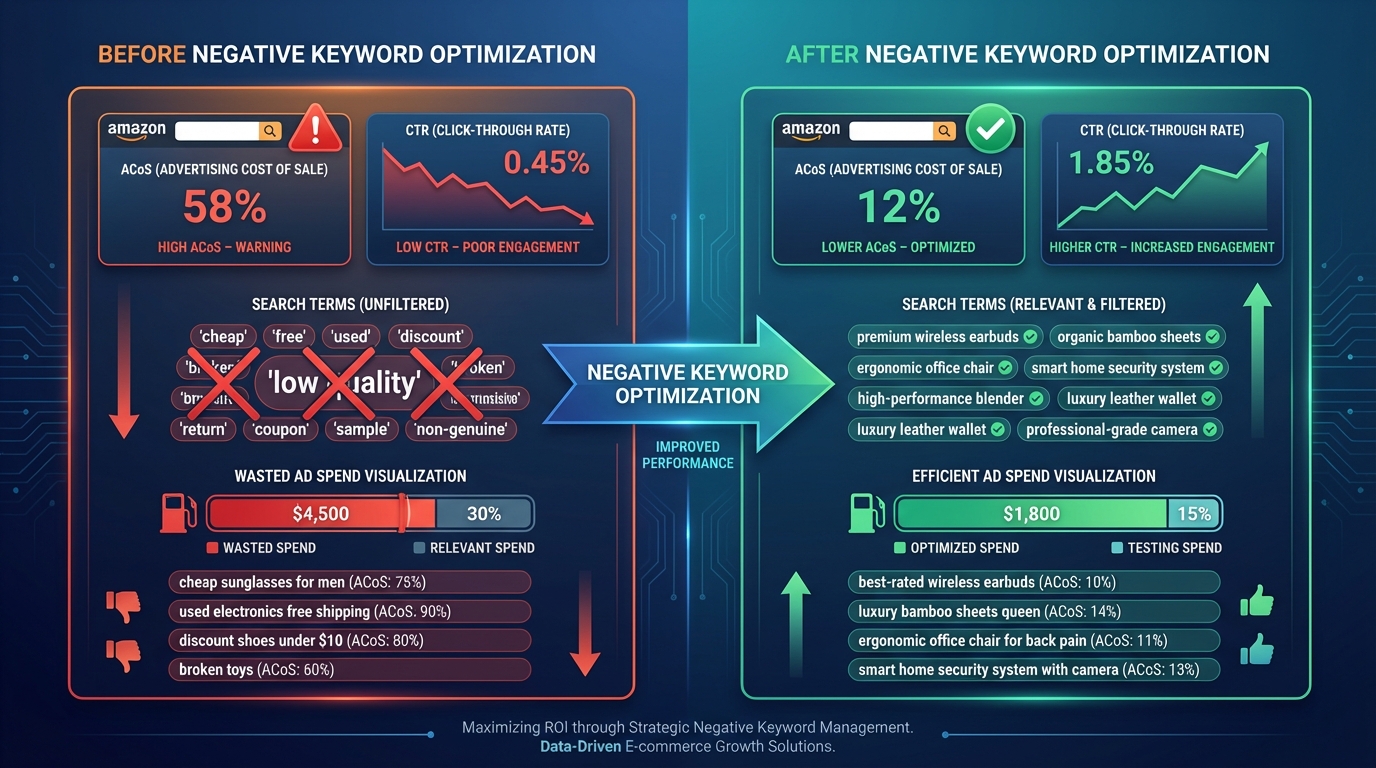
Amazon’s pay-per-click (PPC) model charges you every time a shopper clicks your ad—even if the click comes from someone who has no intention of buying your product. Without proper filtering, your budget can quickly drain on irrelevant searches.
Here’s how negative keywords help reduce wasted ad spend:
- Block Irrelevant Traffic: Prevent your ads from showing for unrelated or low-value search terms like "free," "used," or "DIY."
- Improve Click-Through Rate (CTR): When your ad only appears for relevant searches, it's more likely to be clicked by interested buyers.
- Increase Conversion Rates: Targeted traffic leads to higher conversion rates because users are already looking for products like yours.
- Lower Advertising Cost of Sales (ACoS): By eliminating unprofitable clicks, you improve ROI and reduce overall ACoS.
- Enhance Quality Score: Amazon rewards relevant campaigns with better ad placements and lower cost-per-click (CPC) over time.
A real-world example: One SellerSprite user selling organic dog treats noticed their Sponsored Products campaign was getting clicks from searches like "wet dog food" and "dog food coupons." After analyzing their search term report and adding these as negative keywords, their ACoS dropped from 42% to 26% within two weeks—without changing bids or budgets.
Understanding Negative Keyword Match Types
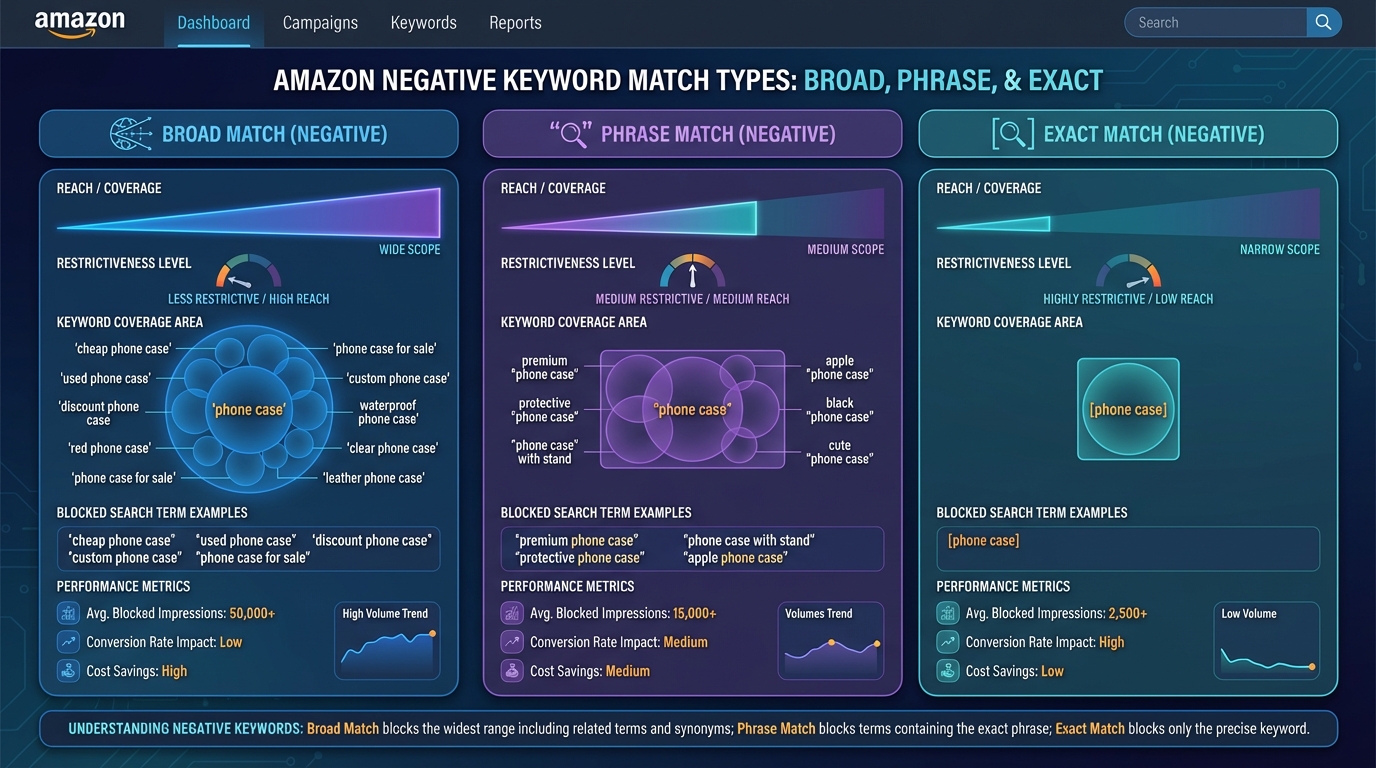
Amazon offers three types of negative keyword match types: negative broad match, negative phrase match, and negative exact match. Each gives you a different level of control over which searches trigger your ads.
Negative Broad Match
When you add a negative keyword in broad match, Amazon blocks your ad from appearing for searches that include any word in your negative keyword list, regardless of order.
Example: You add "cheap" as a negative broad match keyword.
Your ad will not show for:
- "affordable leather wallet."
- "inexpensive wallet for men."
- "best budget wallet."
⚠️ Caution: Negative broad match can be overly aggressive. Avoid using common words like "buy" or "online" unless necessary, as they may block high-intent traffic.
Negative Phrase Match
With a negative phrase match, your ad is blocked only when the entire phrase appears in the search query, in the same order.
Example: You add "used wallet" as a negative phrase match.
Your ad will not show for:
- "used wallet for sale."
- "Where to buy a used wallet?"
But it will still show for:
- "wallet used for travel."
- "durable wallet for everyday use."
This match type offers a balanced approach—blocking unwanted phrases without being too restrictive.
Negative Exact Match
Negative exact-match blocks your ad only when the search query matches the negative keyword exactly, including word order and close variations (such as plurals or misspellings).
Example: You add "free wallet" as a negative exact match.
Your ad will not show for:
- "free wallet."
- "free wallets."
But it will show for:
- "wallet for a gift."
- "Get a wallet free with purchase."
An exact match is ideal for blocking specific, known low-performing queries without affecting broader relevance.
How to Find Negative Keywords in Amazon PPC
The foundation of a strong negative keyword strategy is data. You need to know which search terms are triggering your ads—and which ones aren’t converting.
Step 1: Access Your Search Term Report
Go to Amazon Seller Central → Advertising → Reports → Search Term Report. Select the campaign, date range, and ad type (Sponsored Products, Sponsored Brands, etc.).
This report shows every search query that triggered your ads, along with metrics like impressions, clicks, cost, sales, and ACoS.
Step 2: Identify Poor-Performing Search Terms
Filter the report to find search terms with:
- High clicks but zero sales
- High ACoS (e.g., above 60%)
- Low CTR (below 0.3%)
- Irrelevant product intent (e.g., "free," "used," "repair")
These are prime candidates for negative keywords.
Step 3: Use Tools to Automate Discovery
Manually sifting through hundreds of search terms is time-consuming. Tools like SellerSprite automate this process by analyzing your search term data and flagging non-converting queries.
For example, SellerSprite’s Negative Keyword Suggestion Engine uses machine learning to identify:
- Common irrelevant terms across categories
- Low-converting long-tail queries
- Brand-jacking attempts (e.g., "[Your Brand] vs [Competitor]")
This accelerates optimization and ensures you don’t miss hidden inefficiencies.
How to Add Negative Keywords to Your Campaigns
Once you’ve identified negative keywords, it’s time to apply them. Here’s how:
Option 1: Add at the Campaign Level
- Go to Advertising Console → Campaigns.
- Select the campaign you want to edit.
- Click the Targeting tab.
- Click Add Negative Keyword.
- Enter the keyword and select the match type (broad, phrase, exact).
- Save.
✅ Best for: Campaign-specific exclusions (e.g., blocking "refill" in a razor blade campaign).
Option 2: Add at the Portfolio Level
If you use Amazon Portfolios, you can apply negative keywords across multiple campaigns.
This is useful for global exclusions like "free," "knockoff," or "tutorial."
Pro Tip: Use Negative Keyword Lists
Amazon allows you to create reusable Negative Keyword Lists. For example:
- Generic Terms List: "cheap," "free," "used," "repair."
- Competitor Branded List: "[Competitor Brand]," "vs [Competitor]"
- Non-Buyer Intent List: "review," "how to," "DIY."
You can then apply these lists to multiple campaigns with one click—saving time and ensuring consistency.
Building and Managing Negative Keyword Lists
A one-time cleanup isn’t enough. To truly optimize Amazon ad campaigns, you need a systematic approach to building and maintaining negative keyword lists.
Step 1: Start with a Core Exclusion List
Every seller should maintain a base list of universal negative keywords. Common examples include:
- "free"
- "cheap"
- "used"
- "refurbished"
- "repair"
- "tutorial"
- "how to"
- "DIY"
- "download"
- "knockoff"
Apply this list to all new campaigns during setup.
Step 2: Create Category-Specific Lists
Different product categories have unique irrelevant terms. For example:
- Electronics: "jailbreak," "crack," "serial key."
- Beauty: "sample," "mini size," "travel size" (if you don’t sell them)
- Pet Supplies: "homemade," "recipe," "natural remedy."
Tailor your negative lists to your niche for maximum precision.
Step 3: Leverage Competitor Exclusions
If you’re not selling competing brands, block searches that include competitor names. For example, if you sell Nikon-compatible lenses but not Canon, add "Canon" as a negative keyword to avoid irrelevant clicks.
⚠️ Caution: Be careful not to block your own branded terms or common industry words.
Maintaining Your Negative Keyword Strategy
Negative keyword optimization isn’t a one-and-done task. It requires ongoing maintenance to stay effective.
Weekly Review Routine
Set a recurring schedule (e.g., every Monday) to:
- Download the latest search term report.
- Filter for high-spend, zero-sale queries.
- Add new negatives using appropriate match types.
- Review existing negative lists for accuracy.
Monthly Audit
Once a month, conduct a deeper audit:
- Check if any negative keywords are too broad and blocking good traffic.
- Update competitor lists based on market changes.
- Consolidate duplicate or overlapping lists.
- Share findings with your team or tool (like SellerSprite) for automated enforcement.
Automate Where Possible
Use software to automate negative keyword discovery and application. For example, SellerSprite can:
- Auto-generate negative keyword suggestions weekly
- Apply them to campaigns via API
- Track performance impact
This reduces manual work and ensures consistency across large ad portfolios.
FAQ
What are negative keywords, and how do they help reduce wasted ad spend on Amazon?
Negative keywords are search terms that prevent your Amazon ads from appearing for irrelevant queries. By blocking low-intent or mismatched searches (like "free" or "used"), you avoid paying for clicks that won’t convert, directly reducing wasted ad spend and improving ROI.
How do I find and add negative keywords in my Amazon PPC campaigns?
Go to Amazon Seller Central → Advertising → Reports → Search Term Report. Analyze queries with high clicks but no sales or high ACoS. Add these as negative keywords in the Targeting tab of your campaign, choosing the appropriate match type (broad, phrase, or exact).
What is the difference between negative exact, phrase, and broad match types in Amazon advertising?
Negative broad match blocks ads if any word in the negative keyword appears in the search. Negative phrase match blocks only if the full phrase appears in order. Negative exact match blocks only when the search exactly matches the keyword. Use broad for aggressive filtering, phrase for balance, and exact for precision.
Next Steps
- Download your latest Search Term Report and identify 5 high-spend, zero-sale queries to add as negative keywords.
- Visit SellerSprite to automate negative keyword discovery and optimize your Amazon ad campaigns at scale.
References
- Amazon Advertising Help – Negative Keywords View
- How to Build Profitable Amazon Ads: Expert Tips That Work View
- Amazon PPC Optimization Strategies, Tools, and Setup Guide View
By SellerSprite Success Team
The SellerSprite Success Team consists of Amazon advertising experts with over 10 years of combined experience in e-commerce optimization. We specialize in data-driven PPC strategies, ACoS reduction, and scalable automation for Amazon sellers. Our insights are backed by real campaign data and tested methodologies used by top 1% sellers.