This guide shows how to perform an Amazon flat-file bulk listing update using Add Products via Upload, including how to download the correct category template, fill only the fields you intend to change, upload safely, and diagnose errors using the Processing Report. It also includes practical scenarios and risk controls to help you scale updates without breaking your catalog.
Key Takeaways
- If Seller Central edits are not sticking, a category-specific flat file is often the fastest and most reliable way to update listings in bulk.
- Use PartialUpdate when you want to change only a few fields and avoid overwriting everything else.
- Always read the Processing Report after upload. It tells you exactly which row failed and why.
- The Valid Values tab inside the template is your source of truth for dropdown fields. Copy values exactly to prevent silent errors.
- To keep your edits safe and SEO-ready, draft and validate your copy in SellerSprite Listing Builder, then push only the necessary fields via flat file.
Applies to: This workflow is available in major Amazon marketplaces where Add Products via Upload exists, including Amazon.com, Amazon.ca, Amazon.co.uk, and key EU sites. The exact template fields and valid values vary by category and marketplace.
Table of Contents
- When to Use Flat Files Instead of Manual Editing
- Understand Amazon Flat File Templates for Existing Listings
- Step 1: Download the Right Category-Specific Inventory File
- Step 2: Safely Prepare Your Bulk Edit File
- Step 3: Upload the File and Read the Processing Report
- Advanced Tips and Real Scenarios
- Use SellerSprite Listing Builder to Speed Up and Protect Your Edits
- FAQs About Editing Amazon Listings with Flat Files
- About the Author
- References
When to Use Flat Files Instead of Manual Editing
Takeaway: Use flat files when you need speed, consistency, or better diagnostics than the single-SKU edit screen.
Manual edits inside Manage Inventory work fine for one-off changes, but they often break down when you manage multiple SKUs, variations, or repeated updates. If you have ever edited a title or bullet points and nothing happened, or the change reverted later, a flat file can be the more reliable path because it forces a structured submission and generates a Processing Report that explains outcomes.
- Bulk listing updates: Update titles, bullet points, backend search terms, or attributes across 10 to 500 SKUs with one upload.
- Variation family edits: Adjust parent-child relationships, variation themes, or child attributes when the UI becomes error-prone.
- Stuck edits: Force updates to fields that do not apply correctly in Seller Central due to caching, conflicts, or validation rules.
- Operational fixes: Prevent accidental FBM conversion for FBA SKUs by explicitly setting the fulfillment center field in bulk.
- Error visibility: Get row-level diagnostics instead of guessing what went wrong.
Quick comparison:
| Method | Best for | Main risk |
|---|---|---|
| Manual edit in Seller Central | One SKU, one field, quick checks | Edits may not stick, limited diagnostics |
| Category-specific flat file upload | Amazon flat file bulk listing update | Overwriting fields if you choose the wrong update mode |
| SellerSprite Listing Builder | Draft copy with keyword coverage and limits, import existing ASIN content, and organize updates | You still need disciplined change control when pushing updates back to Amazon |
Understand Amazon Flat File Templates for Existing Listings
Takeaway: A flat file is a category-specific spreadsheet with strict rules. Treat it like a controlled submission form, not a freeform document.
Amazon’s category-specific inventory file template is what most sellers mean by an Amazon flat file. Each category template includes required fields, optional fields, and controlled fields that only accept specific values. The same concept applies across marketplaces, but the column names and accepted values can differ.
Core columns you will see often:
- seller-sku: your unique SKU identifier for each row
- product-id and product-id-type: ASIN for updates, UPC for new catalog creation in many cases
- item-name: your listing title
- bullet_point1 to bullet_point5: your key product features
- generic_keywords or search terms: backend keywords (field name varies)
- main_image_url plus additional image URL fields
- parentage, parent-sku, relationship-type, variation-theme: variation setup
- update-delete: action mode such as PartialUpdate or Update, depending on template
High-risk fields vs safer fields
Some fields are operationally safe to update in bulk. Others are more likely to trigger review, cause suppression, or create catalog conflicts. A professional approach is to separate updates into batches by risk level.
| Field type | Use flat file? | Risk notes |
|---|---|---|
| Price and quantity | Yes | Low risk if you use the correct file type and validate currency per marketplace (USD, EUR, GBP). |
| Bullets and description | Yes | Medium risk. Avoid forbidden characters and do not exceed limits. Test with 1 to 2 SKUs first. |
| Main image URL | Yes, carefully | Medium to high risk. Broken URLs or non-compliant images can suppress listings. |
| Brand name, product type, category nodes | Only if necessary | High risk. These can trigger catalog conflicts and approval checks. Split into a separate upload with a tight test plan. |
| Variation theme or parent-child relationships | Yes, with a full backup | High risk. A missing parent SKU or mismatched theme attributes can break the family. |
Safety rule: Start with a 1 to 2 SKU test upload, confirm the listing reflects changes correctly, then scale to the full batch. This one habit prevents most catalog disasters.
Step 1: Download the Right Category-Specific Inventory File
Takeaway: The template must match your product’s current category. The wrong template is one of the fastest ways to create errors or wipe out attributes.
Step-by-step
- In Seller Central, open Inventory, then select Add Products via Upload.
- Go to Download an Inventory File.
- Choose Category-specific inventory files, then select the marketplace you are working on.
- Browse the category tree or search your category path. Select the category that matches your existing listing or the category you want for a new listing.
- Click Generate Template and download the file.
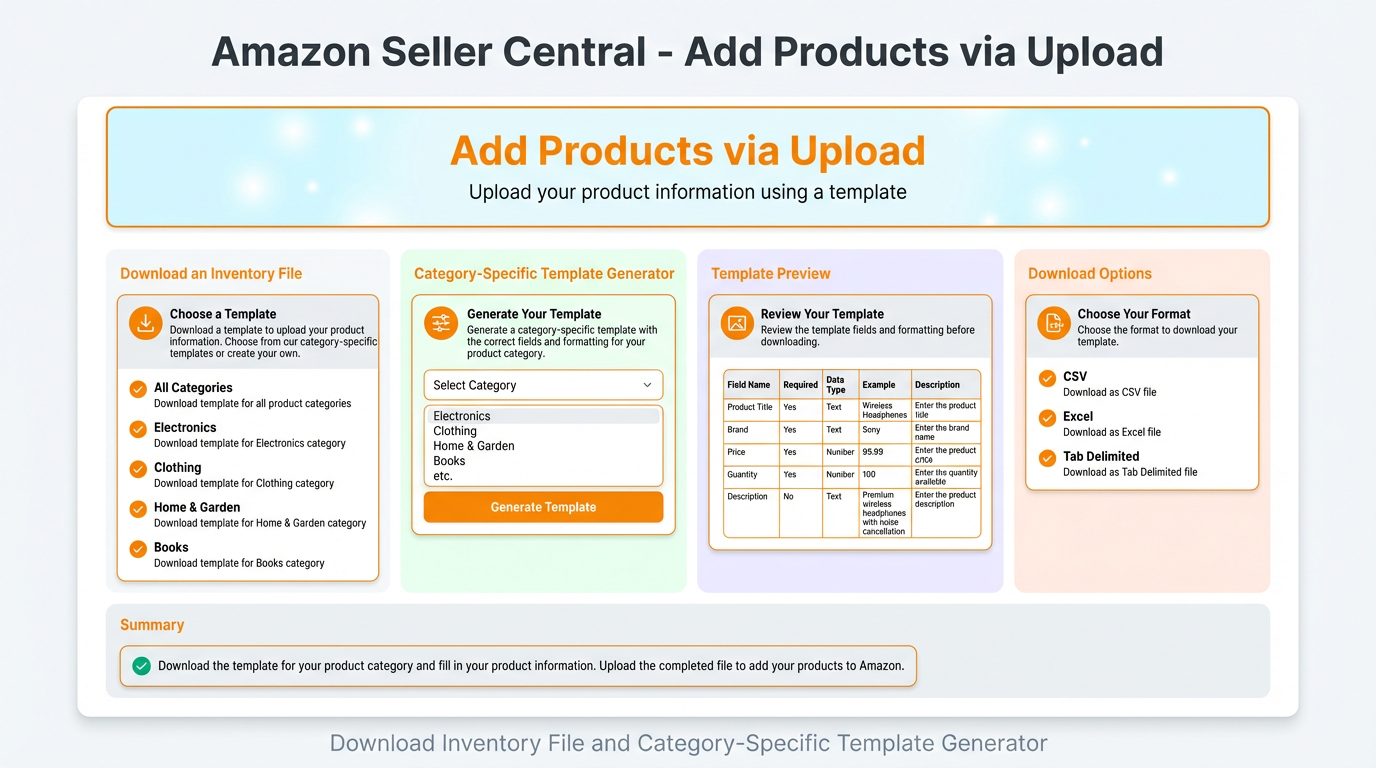
Why category matching matters:
- Each category has different required fields and valid values.
- Using the wrong template can cause missing attribute errors or mismatched item type values.
- In worst cases, a full update with blanks can clear browse nodes or break variation relationships.
Reference: Create your inventory file template
Step 2: Safely Prepare Your Bulk Edit File
Takeaway: Fill only what you intend to change, keep controlled values exact, and choose the correct update mode to avoid accidental overwrites.
Prepare your SKU list and backup
Before you touch the template, make a simple change plan:
- Define the exact fields you will update in this batch (example: title only).
- Create a rollback copy of your current listing content. A practical method is to import your ASIN into SellerSprite Listing Builder and save the current copy as a draft, so you can restore it quickly if needed.
- Use a small test set of 1 to 2 SKUs before scaling to dozens.
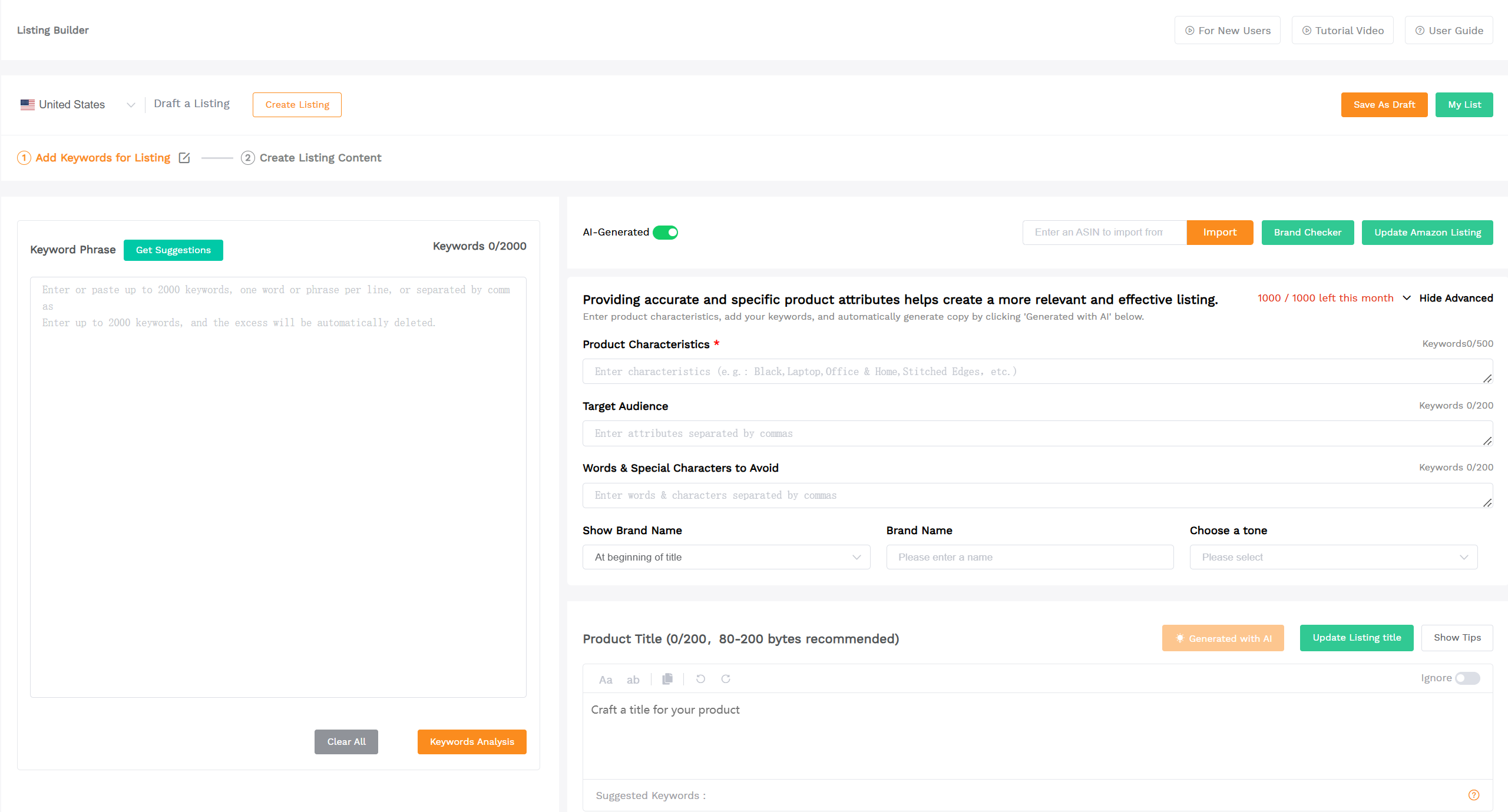
Fill the required fields first in a practical order
Each category template highlights required columns (often with color). Start with the fields that identify the SKU and classify the product:
- Product type: controlled field. Use the dropdown or the Valid Values tab. Copy the exact phrase.
- Seller SKU: exact match for existing listings. For new listings, follow a consistent SKU naming convention.
- Brand name: use the exact brand spelling already in the catalog to reduce conflicts.
- Product name: your title. For troubleshooting, update only the title first, confirm it applies, then move to bullets and description.
- Product ID and product ID type: for many update cases, you can use ASIN; for new catalog creation, you often use UPC and UPC as the ID type (category rules vary).
- Item type keyword: classification field. Use a valid value, not marketing text.
Use Valid Values to prevent dropdown mistakes.
Dropdown fields are controlled. If the dropdown does not load, do not guess. Use the Valid Values tab to copy the exact accepted value. A practical habit is to paste as plain text and avoid carrying formatting that can break validation.
Safe copy-paste method:
- Click the target cell once.
- Paste the value only (avoid paste formatting).
- Confirm the cell still behaves normally.
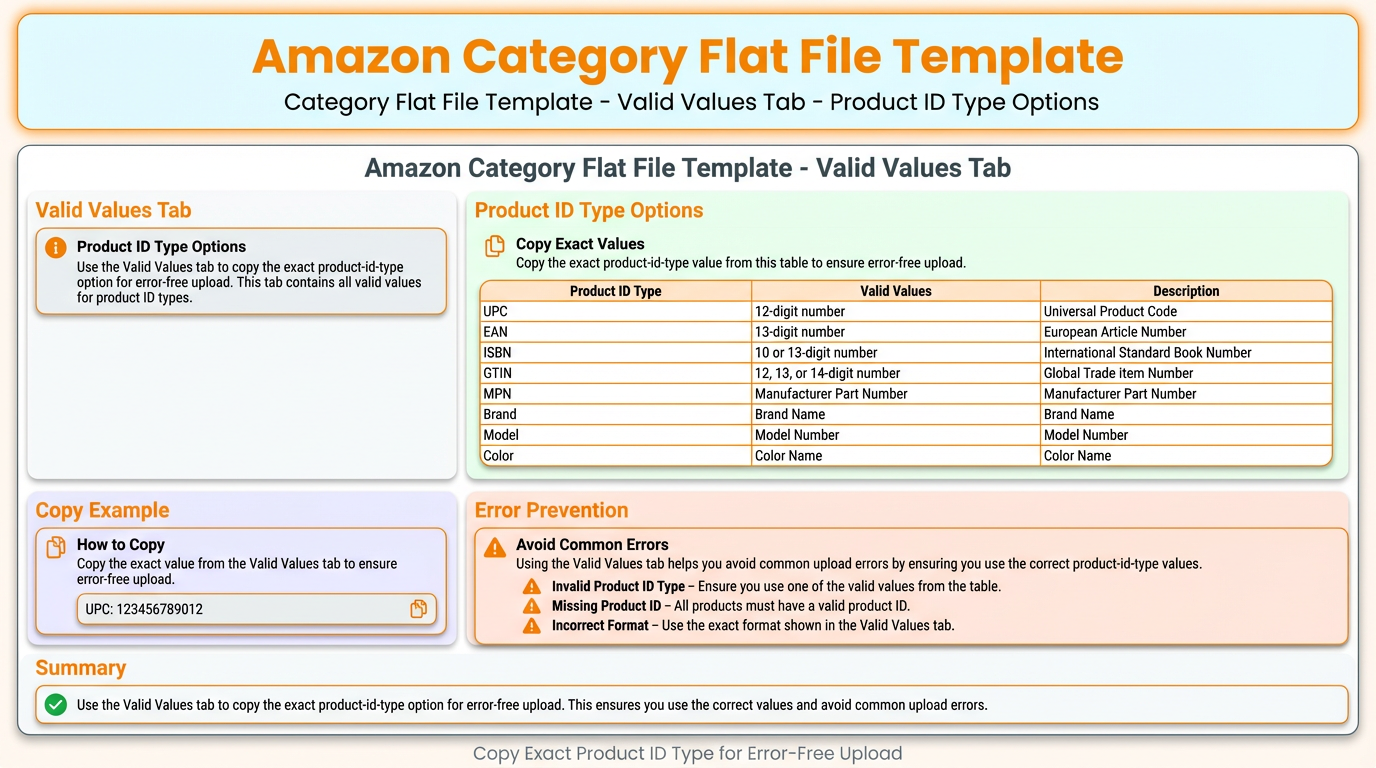
Fill only the fields you want to update
This is the most important execution detail for beginners. A flat file does not ask you to fill in everything. It is asking you to fill in what is required and what you want to change, based on your chosen update mode.
Rule of thumb: If you leave a field blank and you use a full overwrite mode, Amazon may interpret the blank as "replace with empty" depending on the field. That is how bullet points, backend keywords, or browse nodes can disappear.
Choose the correct update mode.
The template includes an action field (commonly called update-delete). Your choice here controls how aggressive Amazon will be with overwriting data:
- PartialUpdate: Best for updating specific fields like titles, bullets, and keywords without touching everything else.
- Update: Often used for creating new listings or when PartialUpdate does not overwrite a stubborn field.
- Complete update: Use only with a full backup and a fully populated file for all fields you want to preserve.
- Delete: Useful for removing SKUs quickly, especially inside large variation families.
Variation fields that must be consistent
If you are editing a variation family, Amazon becomes strict. You must provide parentage, parent SKU, relationship type, variation theme, and the attributes required by that theme.
- If your variation theme is ColorMaterial, you must fill both color and material columns for each child.
- Mismatched spacing, capitalization, or extra characters across children can cause variation errors.
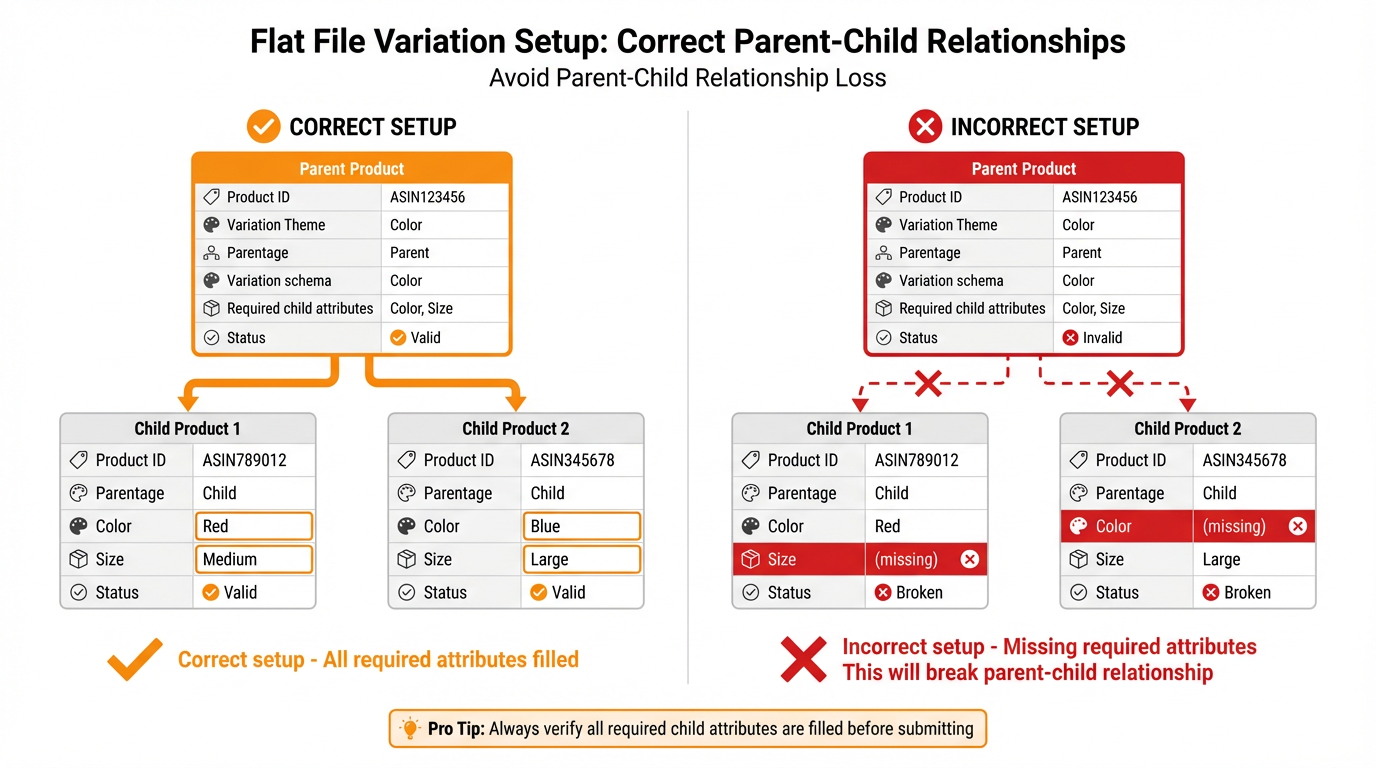
FBA safeguard: fulfillment center field
If you are updating an existing FBA listing, include the fulfillment center field using the valid value for your marketplace (example, commonly seen for Amazon US is Amazon_na). If you skip it, some sellers see their offers switch to FBM, which can lead to stranded inventory and unnecessary cleanup work.
Key takeaway: Treat FBA fields as operational controls, not optional metadata. One missing value can create hours of downstream work.
Step 3: Upload the File and Read the Processing Report
Takeaway: Uploading is only half the job. The Processing Report is where you confirm success and pinpoint fixes.
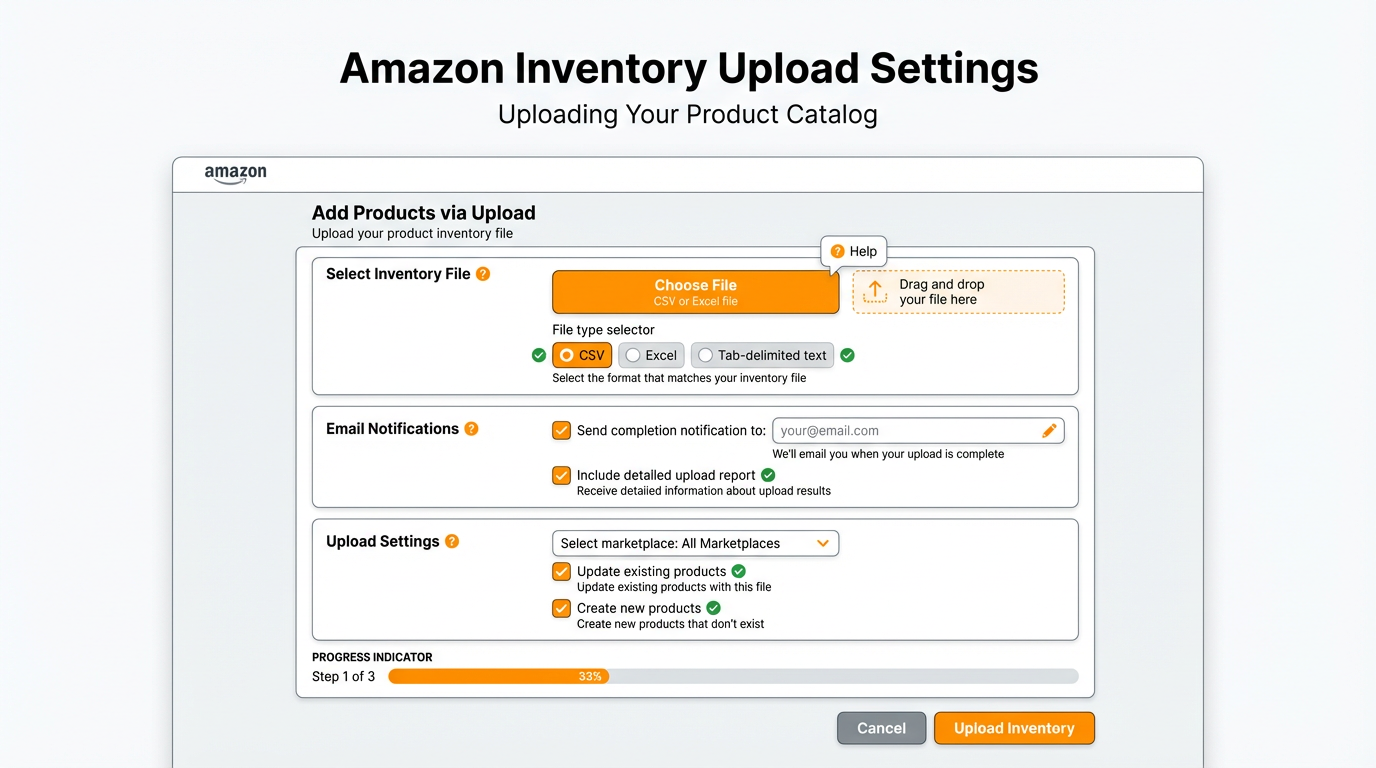
Upload steps
- Return to Add Products via Upload.
- Open and upload your inventory file.
- Choose the correct file type (most sellers use inventory files for specific categories for listing content edits).
- Click Choose file and select your saved spreadsheet.
- Enter your email address so Amazon can send the results summary.
- Select the file format, usually Excel, then click Upload.
How to read the Processing Report like a pro
After upload, monitor the batch status in Check Upload Status. Then download the Processing Report. This report is usually a tab-delimited file you can open in a spreadsheet editor. Start with the top summary, then jump directly to error rows.
- First pass: Look for the total processed vs successful count.
- Second pass: Filter rows for Error or Warning messages.
- Third pass: Use the error message text to locate the exact column, then correct and reupload.
Reference: Review a Processing Report
Common flat file errors and how to fix them
Error codes vary by marketplace and template version, but the fix pattern is consistent: identify the field name in the message, validate against Data Definitions and Valid Values, correct the row, then reupload.
| Error code | What it usually means | Practical fix |
|---|---|---|
| 5005 | Invalid value in the update-delete column | Use only valid action values supported by the template (example: Update, Delete, or Partial Update, depending on the file). |
| 8058 | Missing required attribute for a SKU (often item_name, product type, or a required numeric field) | Fill the required field for that row. If unsure, check the template required columns and Data Definitions. |
| 8101 or 8103 | Invalid ProductType value | Copy the exact ProductType from Valid Values. Do not invent your own. |
| 8560 | ASIN creation or matching failed due to missing required fields, invalid values, or ID mismatch | Confirm product ID is correct, then populate all required and conditionally required fields with valid values and resubmit. |
| 20008 or 20009 | Image size does not meet minimum requirements | Replace with a compliant image file and resubmit. Confirm the URL points directly to the image. |
| 99038 | Invalid characters or formatting in the product name or description | Remove unsupported characters and keep formatting clean. Recheck the Data Definitions for the allowed format. |
| 99040 | Missing main_image_url | Provide a valid, publicly accessible main image URL, then reupload. |
| 9010 or 8064 | Marketplace-dependent codes that often point to invalid values, mismatched template choice, or restricted edits | Use the error message text to identify the exact attribute. Cross-check Valid Values and confirm you used the correct category template. If it mentions restrictions, open a Seller Support case with the batch ID. |
Key takeaway: Do not debug by guessing. Debug by reading the report, correcting the specific cell, and reuploading a clean batch.
Advanced Tips and Real Scenarios
Takeaway: Most flat file problems are not technical. They are process problems. Use small tests, backups, and staged rollouts.
Scenario 1: Bulk title refresh without breaking bullets
Goal: Update titles across 40 SKUs in Home and Kitchen after keyword research, without changing bullets or backend terms.
- Draft new titles in SellerSprite Listing Builder so you can monitor character limits and keyword coverage.
- In the flat file, fill only seller-sku, product-id, product-id-type, item-name, and update-delete.
- Set update-delete to PartialUpdate.
- Test 2 SKUs first, then scale to the full batch.
Watch out: If you accidentally use a full overwrite mode and leave bullet fields blank, you can clear bullets and keywords unintentionally.
Key takeaway: For content-only refreshes, PartialUpdate plus a minimal field set is the safest combination.
Scenario 2: Negative case, you overwrote bullets by mistake and need to roll back
What happened: You uploaded a file to change only the title, but used Update or Complete update while leaving bullet fields empty. After processing, the title changed, but the bullets disappeared or became incomplete.
- Confirm the damage scope: Identify the affected SKUs using the batch ID and the Processing Report.
- Restore from your backup: If you saved a previous copy in SellerSprite Listing Builder drafts, paste the original bullets back into the template for the affected SKUs.
- Reupload with PartialUpdate: Include only the bullet columns you are restoring plus identification fields.
- Validate indexing after recovery: Use the SellerSprite Index Checker to confirm your key terms are still indexed after the rollback.
Key takeaway: The Processing Report tells you what happened. Your backup tells you what to restore. Together, they turn a mistake into a controlled recovery.
Scenario 3: Repair a broken variation family
Goal: Rebuild parent-child relationships when variations are broken, children appear as standalone listings, or the parent is missing.
- Ensure the parent SKU exists and is included in the file if needed.
- For each child, set parentage to child and enter the exact parent SKU.
- Choose the correct variation theme and fill all theme attribute columns (example: color and material).
- Keep theme attributes consistent in formatting across all children.
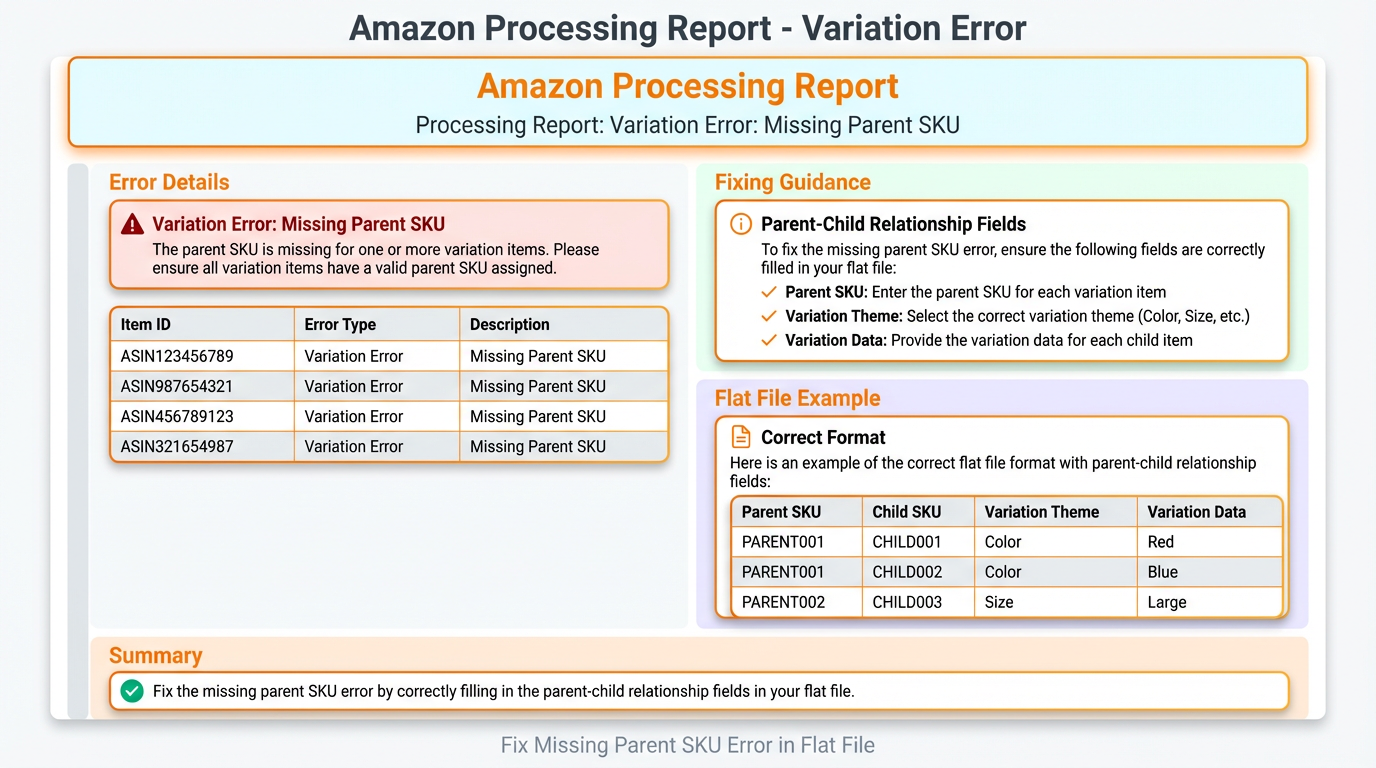
Key takeaway: Variation repairs are high risk. Use a separate upload batch, a full backup, and strict attribute consistency.
Operational tip: update dimensions strategically for FBA
Some sellers use flat files to propose corrected dimensions and weight, then request a remeasure through Seller Support. This can be useful when you believe Amazon recorded incorrect measurements and your FBA fees are higher than expected. Templates often include both unit dimensions and package dimensions. If your packaging does not differ, repeating unit values into package values can keep data consistent and reduce validation issues.
Key takeaway: Read unit labels carefully. Many templates list unit-of-measure columns separately from the numeric value columns, and the order can vary by category.
Use SellerSprite Listing Builder to Speed Up and Protect Your Edits
Takeaway: SellerSprite makes your bulk edits performance-driven, not just operational, by connecting keywords, copy quality, and indexing checks.
Flat files are powerful, but they are also unforgiving. The smartest way to scale is to separate content planning from catalog submission: use SellerSprite to plan what you will change, then use the flat file to push only those validated fields.
Workflow A: Import an existing ASIN, back up copy, then edit safely
- Open SellerSprite Listing Builder and choose the correct marketplace (Amazon.com, Amazon.ca, Amazon.co.uk, key EU sites, and more are supported).
- Import the ASIN to pull existing listing copy into your workspace.
- Save a draft as your rollback snapshot.
- Edit title, bullets, and description with built-in character tracking and keyword coverage.
Key takeaway: Listing Builder drafts turn backups into a habit, not a chore.
Workflow B: Build a keyword-backed update plan before you touch the flat file
- Use SellerSprite Reverse ASIN to extract competitor keyword signals.
- Use Keyword Mining to expand long-tail phrases aligned with real search behavior.
- Organize your keywords into a focused bank, then map primary terms to the title and secondary terms to bullets and backend fields.
- After publishing updates, verify indexing using Index Checker.
Key takeaway: Bulk updates should improve ranking and conversion, not just formatting. Use SellerSprite data to decide which fields to edit and which SKUs deserve priority.
Related guide: Listing Builder Guide
Share Your Sourcing Journey With SellerSprite Community
Join the SellerSprite community on the Facebook Group to share your sourcing journey, ask questions, and get support from fellow Amazon sellers.
FAQs About Editing Amazon Listings with Flat Files
Takeaway: Most questions come down to controlling overwrite risk and reading the report correctly.high-risk
Can I update only one field with a flat file?
Yes. In fact, that is often the best approach. Use PartialUpdate, and fill only the identification fields plus the single field you want to change (example: item-name for title). This reduces overwrite risk and makes debugging faster.
How long do flat file updates take to reflect on Amazon?
Processing time depends on batch size and category. Many uploads process within minutes, but some catalog fields can take longer to reflect on the detail page due to validation, indexing refresh cycles, or category review.
What if my flat file shows Error 8560, 9010, or 8064?
Start with the message text in the Processing Report, not the code. Confirm the template category, then validate the named field using Data Definitions and Valid Values. For creation-related errors like 8560, confirm the product ID strategy and required fields. For marketplace-dependent codes like 9010 or 8064, the fix is often invalid values, restricted edits, or a mismatch between item type and template choice.
Can I change the brand or variation theme via a flat file?
These are high-risk changes. They can trigger review, cause catalog conflicts, or break variations. If you must do it, isolate the change into a small test batch, keep a complete backup, and be prepared to open a Seller Support case if Amazon requires approval or documentation.
Is it safer to use flat files or a listing tool?
Use both in the right roles. Use SellerSprite Listing Builder to draft, validate, and back up content with keyword coverage and limits. Use flat files for structured submission and bulk execution, especially when Seller Central manual edits are unreliable.
Key takeaway: The safest bulk edit strategy is staged: plan and validate in SellerSprite, test 1 to 2 SKUs by flat file, then scale.
About the Author
SellerSprite Team
We support Amazon sellers worldwide using SellerSprite, with a focus on practical execution: listing optimization, bulk catalog operations, keyword workflows, and troubleshooting upload errors through Processing Reports. This guide reflects the patterns we see repeatedly when sellers scale from a few SKUs to complex catalogs with variations and multi-marketplace workflows.
View The SellerSprite Course Directory
Ready for the next step? Open the SellerSprite Academy course directory to continue building your Amazon FBA skills chapter by chapter.
References
- Amazon Seller Central Help: Create your inventory file template
- Amazon Seller Central Help: Review a Processing Report
- Amazon Seller Central Help: Inventory file upload FAQ
- Amazon Seller University: Listings troubleshooting (flat file error examples)
- SellerSprite: Listing Builder Guide
- Further reading: How to Create an Amazon Listing in Seller Central Step by Step
- Further reading: How To Create High-Quality Amazon Listing Images To Help Boost Sales